
Dirac Live needs an omnidirectional measurement microphone with its own calibration file. The microphone is not included with the Dirac licence.
Which microphone can you use?
Beginner
| Microphone | Works with Dirac? | Connect it to |
|---|---|---|
| miniDSP UMIK-1 | Yes. This is the one Dirac recommends. | Your computer (USB) |
| miniDSP UMIK-2 | Yes | Your computer (USB) |
| XTC Pro | Yes, with its included USB amplifier box | Your computer, through the USB box |
| The mic supplied with your receiver (Onkyo, Pioneer, Integra, NAD and others) | Yes. Dirac supports microphones bundled with Dirac-enabled devices. | The receiver itself. Dirac then loads its calibration automatically. |
| Bluesound room calibration kit | Yes, including with other brands of receiver | Your computer, not the receiver |
| The Audyssey mic supplied with Denon and Marantz | No. Dirac states it is not compatible. | Not usable |
| Any cardioid or bi-directional mic, including most vocal and podcast mics | No | Not usable |
Denon or Marantz owner? You need to buy a mic. A UMIK-1 is the simplest choice.

Find and download your calibration file (UMIK-1 and UMIK-2)
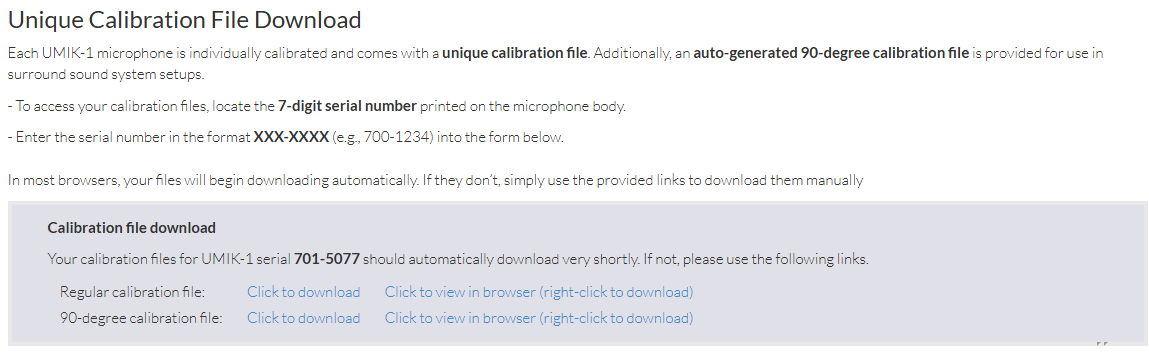
Every UMIK is measured individually at the factory and has its own calibration file, matched to its serial number. Dirac needs this file to know exactly how your mic hears.
- Find the 7-digit serial number printed on the body of the microphone. It’s written as three digits, a dash, then four digits, for example 700-1234.
- Go to the miniDSP UMIK-1 page or UMIK-2 page.
- Scroll down to the calibration section. On the UMIK-1 page it’s called Calibration file download. On the UMIK-2 page it’s Unique Calibration File Download.
- Type your serial number into the form in the same format, with the dash, and submit it.
- Two files download automatically in most browsers: a 0 degree file and a 90 degree file (the one with 90deg in its name). If nothing appears, check your browser’s downloads list and that it hasn’t blocked the download.
- Move both files into a folder you’ll find again, such as Documents, Dirac. You’ll use the same file every time you calibrate.

Which file to use
| Your system | File | Point the mic |
|---|---|---|
| Home cinema or any multichannel system (5.1, 7.1, Atmos) | 90 degree (90deg in the name) | Straight up at the ceiling |
| Stereo pair only | 0 degree | Straight at the speakers |
- Whichever you choose, point the mic the same way for every measurement.
- You load the file in Dirac Live on the Select Recording Device screen, by clicking the red “No microphone calibration” message (see Step 3).
Set it up properly
- Use a tripod or mic stand. Holding the mic by hand adds noise and moves it between sweeps.
- Put it at seated ear height, with nothing between the mic and any speaker, and keep it away from walls.
- Plug the USB mic straight into the laptop or through a powered USB extension cable. Never use a USB hub or adaptor. Over 5 m, use an active USB cable.
- Mac users: allow Dirac Live to use the microphone in System Settings, Privacy and Security, Microphone. Also turn off Voice Isolation and select Standard in the microphone menu at the top of the screen.
- Phone or tablet app: this only works with the mic bundled with your device. You cannot plug a USB mic into a phone for Dirac.
Common questions
The questions people ask most at this step, collected from a year of posts in Dirac user groups.
Can I use my phone’s own microphone with the Dirac Live app?
No. Dirac states the mobile app doesn’t use the phone’s built-in microphone. You still need a measurement mic from the table above, connected to the phone or computer running the app.
Source: Dirac Help Centre (official): supported operating systems.
Can I use the microphone that came with my Denon or Marantz?
No. That is an Audyssey microphone, and Dirac says it isn’t compatible. Dirac recommends the miniDSP UMIK-1 as the easy option.
Source: Dirac Help Centre (official): microphone requirements.
My mic keeps dropping out or isn’t recognised
Plug it straight into a USB port on the computer, not a hub or adaptor, and try a different cable. Check Dirac Live has permission to use the microphone in your computer’s privacy settings. The full list of fixes is in Troubleshooting.
Source: Dirac Help Centre (official): imprecise measurements.
The level meter barely moves unless I shout
Raise the UMIK-1’s input gain in your computer’s own settings, not just in Dirac. miniDSP’s instructions: on Windows, Sound settings, Recording, UMIK-1, Properties, Levels, set to 100. On a Mac, open Audio MIDI Setup and set the UMIK-1 gain to 24 dB. Needing the slider at maximum is normal for this mic.
Source: miniDSP: UMIK-1 with Dirac.
Can I use a longer USB cable?
Yes, but use an active (powered) USB extension. miniDSP staff advise that passive extensions may not supply enough power for a UMIK.
Source: miniDSP forum (staff answer).
Next step
Step 3: Install Dirac Live and connect
Got your mic? Install the app and get it talking to your receiver.
Why the microphone matters
Advanced
Dirac needs to hear the direct sound from every speaker and the room’s reflections at equal sensitivity, whatever direction they arrive from. An omnidirectional microphone does that. A cardioid mic is less sensitive to sound from behind, so with it pointed at the front speakers the surrounds measure quieter than they really are and the calibration is built on wrong data.
Mic gain and software versions
From Dirac Live 3.11 onwards, a Mic Gain setting of +18 dB is the same as 0 dB in earlier versions. Bear this in mind when following older guides or forum posts.
UMIK-1 or UMIK-2?
Both are supported and calibrated per unit. The UMIK-2 has a lower noise floor than the UMIK-1, which helps in rooms that are hard to keep quiet or when measuring at lower levels. For most home rooms the UMIK-1 is enough, and it is the one Dirac recommends.
If measurements keep failing
Dirac’s troubleshooting advice includes trying a measurement without the calibration file loaded, trying a different USB port, cable or computer, and, if your receiver came with its own mic, trying that one instead. See Troubleshooting.
Sources
- Dirac Help Centre FAQ: microphone requirements, compatible microphones, Audyssey microphone, Bluesound mic kit, imprecise measurements
- miniDSP: UMIK-1 calibration file download
- miniDSP: UMIK-2 calibration file download
- Dirac Live Guide (community), microphone noise floor notes